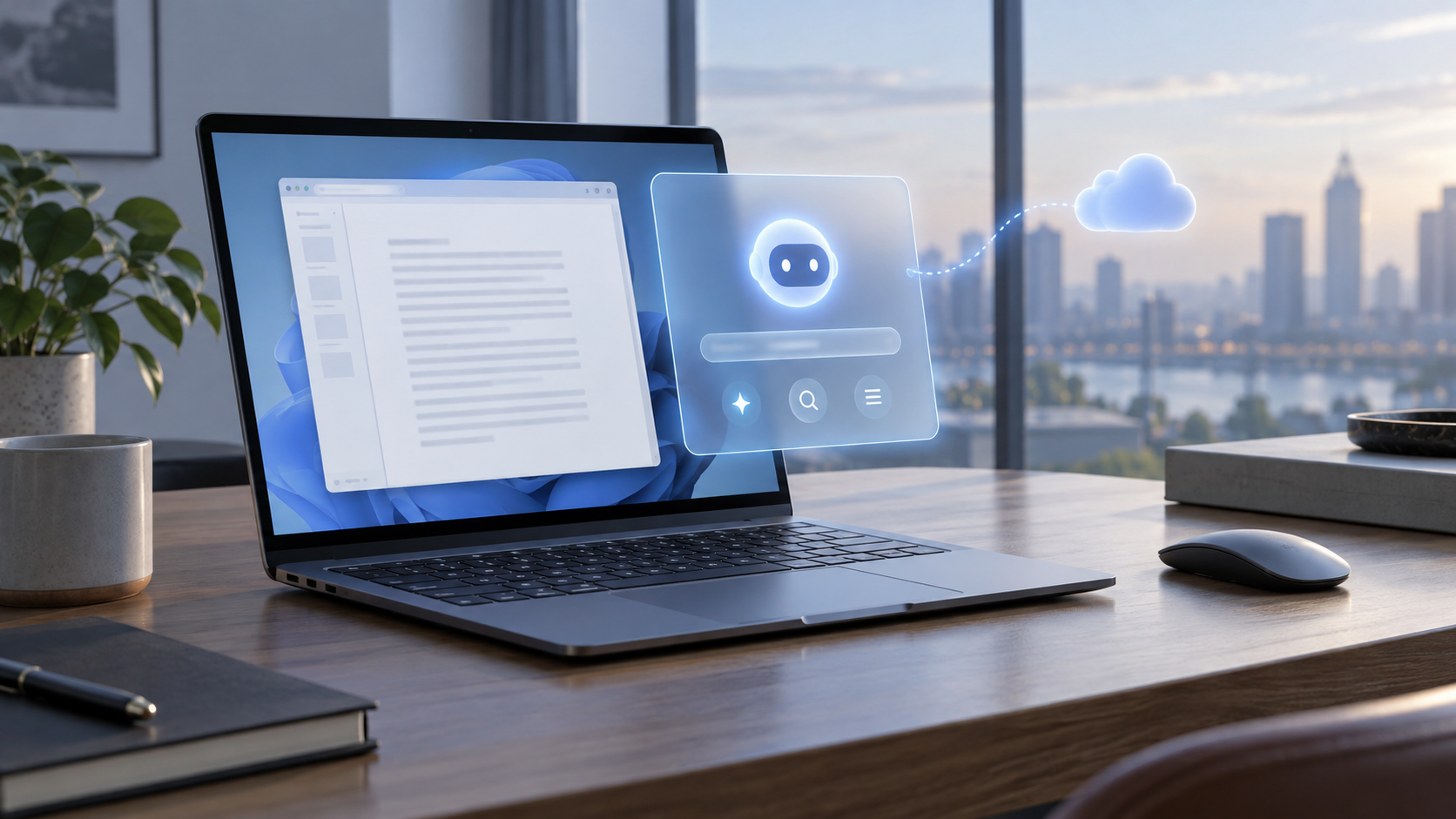
Google has put Gemini behind Alt + Space on Windows 10 and 11. That small shortcut is the most concrete part of its September 10 desktop launch: invoke an assistant over the work already on screen, ask for a draft or summary, then get back to the application beneath it. The more consequential change is not a new model or a new PC capability. It is a new default route into Google’s cloud AI, Search and Workspace ecosystem.
That distinction matters. A desktop app can feel native without being local. Google’s support page requires a stable internet connection, and its launch materials describe Gemini pulling context from Gmail and Drive, using screen sharing and Lens, and opening AI Mode in Search. For an individual who already uses Gemini in a browser, the app may remove a few clicks. For a Workspace administrator, it creates another place where the organization’s existing generative-AI policy has to work as intended.
Google says the app is globally available now. Its Workspace release note says it is on by default for organizations that have Gemini enabled, with controls inherited from the Generative AI settings in the Admin console. That is a notably different launch posture from a consumer download quietly living in the Start menu.

The shortcut is real; the local-AI assumption is not
Google describes Alt + Space as a way to bring Gemini over active work for quick questions, fact checks and brainstorming. Its help documentation says the app can answer questions, draft, summarize, help with code and analyze uploaded images. The hardware bar is low: Windows 10 or later, 8 GB of RAM, 200 MB of free space and a stable connection.
Those requirements do not read like a local-inference product. Nor do the launch materials claim one. The Windows app is best understood as a lightweight client for online services. That has an upside: Google can update features and models without requiring a new AI PC. It also means users who want offline processing, predictable latency or a device-only data boundary should not mistake the installer for a change in where work happens.
Google says the app is lightweight and will not slow down a PC, but it has not published independent Windows-specific CPU, memory, battery or latency figures. That does not make the claim false; it makes it a vendor claim. The same is true of promised productivity gains. The practical test is whether the overlay removes enough friction from recurring work to outweigh another always-available cloud surface.
Connected context is where usefulness and risk meet
The headline feature is not just a pop-up box. Google says users can ask Gemini to draft a project summary using information from Gmail and Drive. The separate Google desktop page also promotes screen sharing and Lens for asking about a window or the entire screen. These are useful capabilities when someone is collecting context across applications. They are also exactly the moments when a person needs to know which account is active, what the organization allows and what should not be placed in a prompt.
Google’s public Windows pages point users to its terms and privacy policy, but they do not offer a single Windows-specific explanation of how screen shares, visual context, prompts and outputs are handled across personal and managed accounts. A workplace should treat the desktop client as part of its broader Gemini governance review, not as a harmless search launcher.
| Question | What the official material says | What remains to check |
|---|---|---|
| Who can use it? | Personal Google accounts, Workspace customers and Workspace Individual subscribers; a work or school account needs administrator-enabled Gemini. | Plan, country, language and feature eligibility, especially for AI Mode. |
| What does it need? | Windows 10+, 8 GB RAM, 200 MB free space and stable internet. | Endpoint-management compatibility and real-world network performance. |
| How is it managed? | Workspace says it follows existing Generative AI Admin console settings and is on by default where Gemini is enabled. | Organizational-unit rollout, audit paths and exception handling. |
| What can it see? | Google promotes Gmail/Drive context, Lens and screen sharing. | Prompt, screen and connected-data handling for each account class. |
Evidence label: official Google launch, support and Workspace documentation, checked September 12, 2026.
Admins get a default-on deployment question
For Workspace organizations with Gemini already enabled, Google says there is no end-user setting and that the feature is on by default. The administrative control lives in the existing Generative AI settings. That is convenient for a company that has already evaluated Gemini as a whole. It is less convenient if its earlier evaluation focused on browser use and did not cover a global shortcut, screen-aware workflows or endpoint support.
A sensible rollout begins with a small managed group, a clear account-selection check and a tested policy for sensitive documents and screens. The useful questions are mundane: Does Alt + Space collide with PowerToys Run or another launcher? Can support teams explain the installation and update path? Which users have AI Mode, and which do not? Are there policies for sharing a window versus an entire screen? Google’s pages establish availability, not a complete enterprise deployment playbook.

Google, Microsoft and OpenAI are converging on the desktop
Gemini for Windows enters a crowded territory. Microsoft already owns the operating system and has Copilot touchpoints across Windows and Microsoft 365. OpenAI’s ChatGPT desktop client gives many users a familiar shortcut-driven assistant. Google’s differentiator is its own web of Search, Gmail, Drive and creative-model services. Its weakness is the same: the app is most compelling when a user is willing and allowed to keep work inside Google’s account and service boundaries.
That makes “which model is better?” the wrong first question for many buyers. The first question is which assistant can reach the work a person is allowed to use without producing a new governance problem. Google has made that route easier to reach; it has not removed the need to inspect the route.
Who should install it now
Individual Windows users who already rely on Gemini and want an immediate shortcut have a straightforward case to try it. The entry requirements are modest, and the app may be a cleaner way to pull a quick answer or draft into a workflow than opening a browser tab.
Workspace teams should move more deliberately. Confirm that Gemini is intentionally enabled, test the shortcut against existing utilities, review connected-app and screen-sharing practices, and make sure users understand that cloud access is not the same as on-device processing. People who need offline AI, strict local handling or granular desktop-specific controls can wait. For them, Google has announced a new point of access, not yet a complete answer.
Sources and related reading
- Google: The Gemini app is now available for Windows
- Google Workspace Updates: Windows desktop app
- Gemini Apps Help: Use the Gemini app for Windows
- Google app for desktop
- Related: AI News Fab coverage of Google Cloud and AI infrastructure
Image provenance: Featured and inline illustrations were generated with OpenAI image tools from original prompts for this article. They are conceptual and contain no third-party logos or product UI.